

The Video Addon in Page Builder CK allows you to easily embed and customize videos in your pages. You can use either local files from your Joomla Media Manager or external YouTube videos. The addon also supports subtitles, poster images, and multiple playback options.
Local Video
When using a local video, you can select your file directly from the Joomla Media Manager. Supported formats include MP4, WebM, and OGV (others may be available in the futur). The file must be stored on your own server / website to be loaded. It will be rendered using a HTML5 video player.
Poster image
You also have the option to choose a poster image, which will be displayed before the video starts. This improves the visual presentation and avoids showing a blank screen while the video is loading.
Tip: A poster image avoids showing a black rectangle while the video is loading.
Subtitles (VTT files)
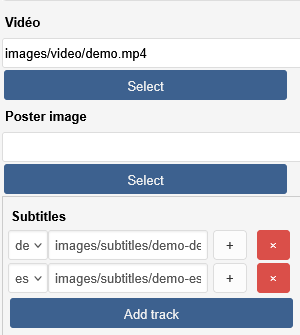
The addon allows you to add multiple subtitle files in the WebVTT format (.vtt). For each subtitle file, you can:
- Select the file from the Media Manager
- Assign a language from the dropdown list. All available languages are listed, and each appears with its its native name (for example for the French : Français)
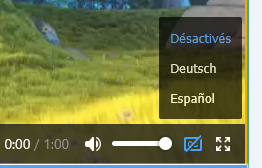
- Once added, subtitles can be enabled or disabled by the viewer directly in the video player.
This makes your videos more accessible and user-friendly for multilingual audiences.
Example of 2 tracks added in "de" (German) and "es" (Spanish) :
In the video you can immediately see the options for each language :
YouTube Videos
Instead of a local file, you can choose to embed a YouTube video by simply pasting the video URL from Youtube.
Example or url that you can use : https://www.youtube.com/watch?v=yxX4hFcj-mM
The player will automatically load the video.
Youtube thumbnail
You also have the option to automatically fetch the thumbnail from YouTube and use it as the poster image. This way, the video will display its official thumbnail before playback instead of loading the iframe in the page. The iframe will be loaded when the user clicks on the thumbnail image. This can be used to improve page loading.
Playback Options
The Video Addon provides several configuration settings to customize the player:
- Width : set a fixed width (e.g. 640px) or use percentage for responsive layout
- Height : define the height of the video, in px or percentage
- Ratio : choose between 16:9 or 4:3 aspect ratio
- Autoplay : start playing the video automatically when the page loads
- Muted : play the video without sound by default
- Loop : restart the video automatically when it ends
- Controls : show or hide the default video player controls






News